 gunnchOS
Thursday Open Technology Lab · Week 4
What Is Inside Your Phone or Computer?
Ask · Learn · Build
Follow a photograph through chips, memory, sensors, power, and software. Discover the jobs inside a phone or computer, then draw your own device blueprint on paper.
Session date: . A free, self-guided lesson for every level. Paper and pencil count as full participation. No computer, account, registration, payment, or prior experience is required.
This week's replay
The permanent archive is on YouTube. Twitch remains the original live recording.
Captions and a transcript belong with the permanent archive. After you load the Twitch replay, use the player's own caption controls. This page does not block the lesson if Twitch is unavailable.
The original 28-slide lecture
The full lecture follows a photograph through the device, explains the components and their tradeoffs, and includes a blueprint activity, optional deeper paths, worked examples, and learning checks. These are the original, unmodified PDF and editable PowerPoint in their original order.
PDF: 818,280 bytes · PowerPoint: 127,960 bytes. The eight-image recap below is a separate resource. Original slide artwork retains its supplied series wording.
Instagram carousel · eight-slide recap
Browse the original recap images at your own pace. The full 28-page lecture is a separate resource.
Swipe left or right on the image. With the carousel focused, use Left and Right arrows, Home, or End. Previous, next, and numbered buttons also work.
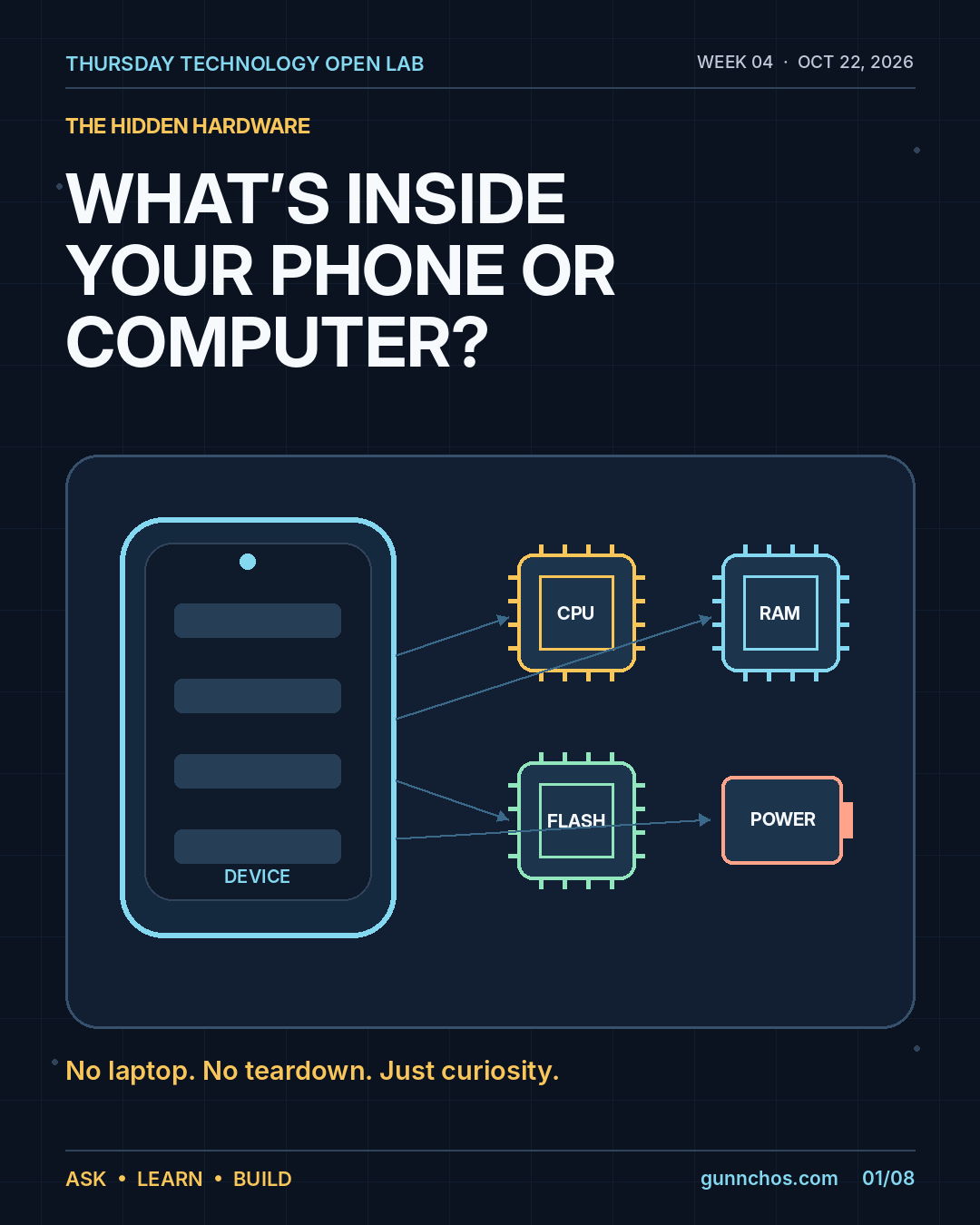
Start with a photograph
You see a preview, tap the shutter, and find the image later in your gallery. Which part detected the light? Which processed it? Which kept the result after a restart? This familiar experience needs a camera, processing, working memory, persistent storage, a display, power, and software cooperating.
Week 1 mapped the whole system. Week 2 followed a tap. Week 3 asked how well the experience works. Week 4 looks more closely at the physical parts and the software that connects their jobs.
The component jobs
- CPU · follow instructions
- The central processing unit runs program instructions, makes decisions, and handles many operating-system and application tasks. Cores work with registers, caches, and main memory. Clock speed alone cannot tell you how well an entire device will perform.
- GPU and optional NPU · specialized work
- A graphics processing unit handles highly parallel work such as drawing a screen or rendering a game. Some devices also have a neural processing unit for supported machine-learning workloads. Having an accelerator does not mean every app uses it, and not every device has a separate NPU.
- RAM · working now
- Random-access memory holds active data while programs run, including an image being processed. Typical RAM is volatile: removing power does not preserve its contents. Caches provide other levels of working memory. A desk is a useful analogy, but RAM is electronic circuitry.
- Persistent storage · keep it later
- Flash storage in a phone, an SSD in many computers, or a hard drive in some PCs holds saved files and installed software after shutdown. A saved photo survives restart because it is in nonvolatile storage, not because RAM remembers it.
- SoC, motherboard, and interconnects · cooperate
- A system-on-chip often integrates CPU, GPU, and other functions. A motherboard supports components and their connections; buses and other interconnects carry information between them. Phones tend to integrate tightly; PCs and laptops vary in packaging, replaceability, cooling, and power budgets. Real layouts differ by model.
- Inputs and outputs · sense and show
- Cameras, microphones, touch sensors, keyboards, buttons, and motion sensors bring information in. Displays, speakers, vibration motors, and other actuators present results. Camera optics guide light to a sensor, which turns measurements of light into electronic data for processing.
- Radios and antennas · connect beyond the device
- Wi-Fi reaches a compatible local network; cellular uses mobile infrastructure and service; Bluetooth connects nearby devices. Antennas send or receive radio signals. GNSS receives satellite signals for positioning. Remote services usually run elsewhere. Strong signal alone cannot prove an app, server, or network dependency is healthy.
- Operating system and drivers · coordinate access
- The OS is software, not a physical chip. Together with drivers it helps apps use devices, permissions, memory, and other resources consistently. The camera app relies on this cooperation for preview, capture, processing, and saving; capable hardware still needs working software.
- Battery, power management, and cooling · sustain work
- A battery or adapter supplies energy, and power-management circuits distribute and regulate it. Heat moves through the enclosure and cooling structures; some computers have fans. Demanding work can draw more power and create heat, so sustained performance can differ from a short burst.
A conceptual photo journey
Light and optics → sensor → processing and software → working data in RAM → saved file in storage → display. You choose the moment; the camera measures light; chips and software process pixels; working memory supports the work; storage retains the file; the screen shows the result.
This is an educational model, not an exact timing trace. Processing, buffering, and display order varies by device. Several jobs may overlap or share a chip. Saving a local photo does not inherently need an internet connection; sending it to a remote service adds other dependencies.
Troubleshoot by job
A symptom is evidence, not a guaranteed diagnosis. Hardware problems can look like software problems, and several causes can produce the same experience.
- An app freezes
- Possible causes: CPU load, memory pressure, storage, an OS or app bug, or waiting on a network.
- Photos will not save
- Possible causes: Storage capacity, permissions, an app problem, or a file-system issue.
- A video call breaks up
- Possible causes: Radio or network conditions, microphone, app, remote service, or device load.
- A phone gets hot
- Possible causes: A demanding workload, the environment, charging conditions, or a fault.
Write what you observed, list possible explanations, and choose one safe comparison that could distinguish them. For example, if one camera app cannot save, check available storage and that app’s permission before claiming the camera sensor is broken. A single observation cannot establish the cause.
Keep this a paper investigation. Do not open devices or handle, remove, puncture, bend, or heat batteries for this lesson.
Design choices have tradeoffs
A useful device fits a person’s needs. Maximum speed can cost energy; a thin enclosure has less cooling space; higher hardware cost can limit access. Repairability and longevity matter too. For a learner studying offline, reliable saved materials and battery life may matter more than peak graphics speed. Choose priorities and describe what evidence would support them.
Draw Your Own Device Blueprint
Take five minutes with paper and pencil. Imagine a device for a person and a task; write that human goal above your drawing. A phone or computer is optional. A question mark is a useful result.
- Draw one large rectangle representing an imaginary phone or computer.
- Label CPU, RAM, Storage, Camera/Input, Screen/Output, and Power.
- Add a radio or connection if useful for your device.
- Draw arrows showing how the components cooperate.
- Explain how your device captures and saves a photo.
Worked example: On an imaginary study device, the camera/input measures a page. The app and OS coordinate CPU and other processing, use RAM for active image data, save the file in storage, and show it on the screen. Power supports every step. A radio is useful if the learner later chooses to share the file.
Success check: Can someone else explain three component jobs from your labels and arrows? Can you explain why the saved photo remains after restart?
Optional phone path: If you want, look at Settings/About, the storage overview, or an available battery summary. Wording differs by device. No paid app, developer setting, or teardown is needed. Keep serial numbers, device IDs, accounts, photos, and personal usage logs private.
Choose your lane
Each lane is a depth you can choose. None of them is worth more than the others. You can participate without a computer. A paper drawing is valid. A phone photo can be used later, when submissions open.
Explorer
Explain component jobs in your own words.
Week 4
- Choose any three parts of your blueprint and explain what each contributes.
- Use a photo to explain the difference between RAM and persistent storage.
- Mark anything you do not know with a question mark.
Builder
Design for an actual person and explain your priorities.
Week 4
- Choose a user: an offline learner, gamer, remote worker, or someone learning the basics.
- Prioritize two components and explain one tradeoff, such as battery life versus maximum speed.
- Write three sentences explaining your decision, what receives less budget, and a safe way to test it.
Engineer / Researcher
Turn a diagram into a claim that evidence could test.
Week 4
- Add interfaces between components, drivers, and software. Consider cache, RAM, and persistent storage.
- Identify a power or thermal constraint; compare a sustained workload with a short burst.
- Write one measurable hypothesis, the measurement, and what result would challenge it. Keep workload and conditions comparable.
This is an educational depth lane, not enrollment in human-subjects research.
Check your understanding
Try these four questions before revealing the explanations.
- What keeps a saved photo after restart: RAM or persistent storage?
- Is the operating system a physical chip?
- Does fast Wi-Fi alone guarantee a smooth video call?
- Which parts turn a camera scene into a saved image?
Reveal the lecture’s explanations
- Persistent storage retains the saved photo. RAM supports active work.
- No. The operating system is software coordinating apps and hardware.
- No. Server health, delay, jitter, software, and device resources also matter.
- Sensor, processing, working memory, software, storage, and display cooperate; the exact pipeline varies.
Keep your blueprint yourself. This page collects no responses or files. Uploads remain closed; participation does not enroll you in research.
Keep exploring
Week 3: Why Does Technology Feel Fast, Slow, Smooth, or Unstable?
Week 2: What Actually Happens When You Tap a Button?
Week 1: Technology Is a System, Not a Screen
All Thursday Open Technology Lab sessions
Privacy and accessibility · How submissions will work
Read alongside the original lecture: WAIKE learning pathways · The Technology Landscape.